Helpdesk Portal (aka Freshdesk)

Created by Samuel Albornoz, Modified on Thu, 9 Jul at 4:11 PM by Samuel Albornoz

Helpdesk Portal (aka Freshdesk)


The helpdesk portal now features a library called Knowledge Base. This section will be built over time with helpful documentation for different apps and processes, troubleshooting tips, and more.


Log in is not required to Submit a Ticket or access the Knowledge base. Log in is only required to update and manage your own personal tickets.


To access the new helpdesk portal, go to https://support.rlhudson.com


Log in to manage your tickets: 

  1. Click the Login button on the top right corner.
  2. Next to Are you a customer? at the bottom of the page, click Login here and use your company email and password to log in.
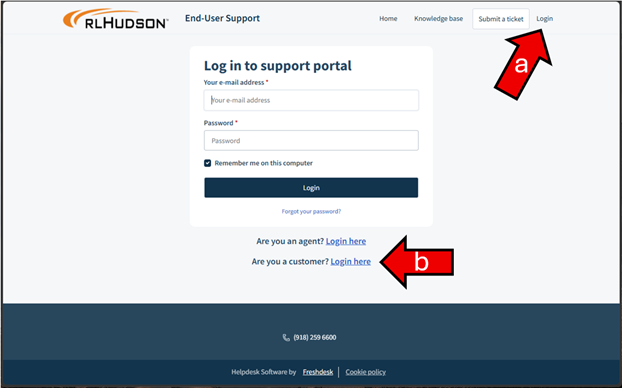
 

The image displays the login page for Hulster's support portal, featuring fields for email, password, and account selection.

AI-generated content may be incorrect.


Once logged in, click Tickets, then click on the title of the ticket to view, reply, or close the ticket.
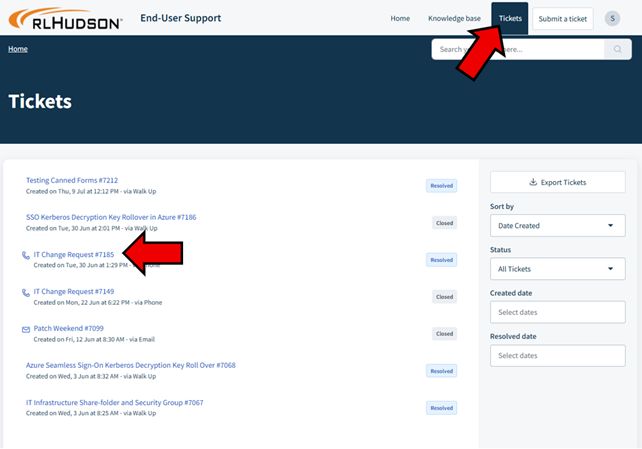
 

The image shows a webpage interface with a navigation bar featuring links to 'Home', 'Knowledge Base', and 'Tickets', along with various ticket entries, their statuses, and creation/resolution dates.

AI-generated content may be incorrect.


Knowledge Base

The knowledge base can be accessed from the Home page or the Knowledge base tab
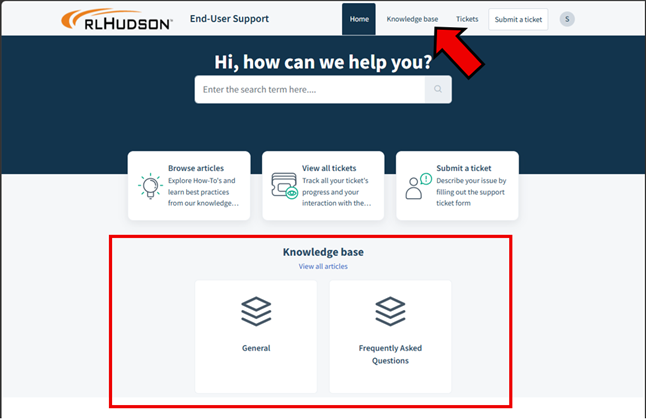
 

The image is a webpage for HUDSON's End-User Support, featuring a search bar, a knowledge base, ticket submission, and various help resources.

AI-generated content may be incorrect.


Find tickets or articles that match a specific keyword or phrase. (log in required to search tickets)
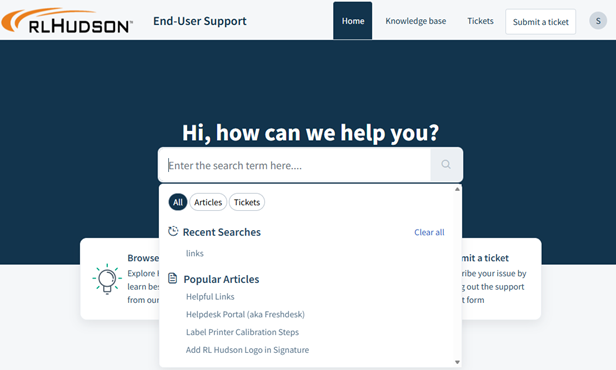
 

The image shows a user interface for RLHUDSON's Helpdesk portal, featuring sections for submitting tickets, searching help articles, and other support resources.

AI-generated content may be incorrect.


If there is any specific information you would like to see here, open a ticket and let us know!
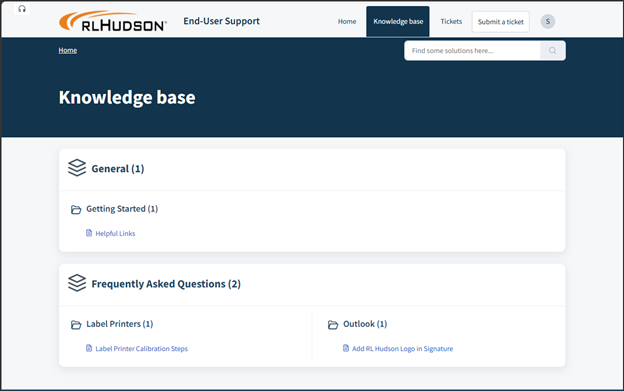
 

The image shows a user interface for HLU's (Hudson Logistics) support section, featuring various tabs for submitting tickets, accessing the knowledge base, and finding solutions.

AI-generated content may be incorrect.


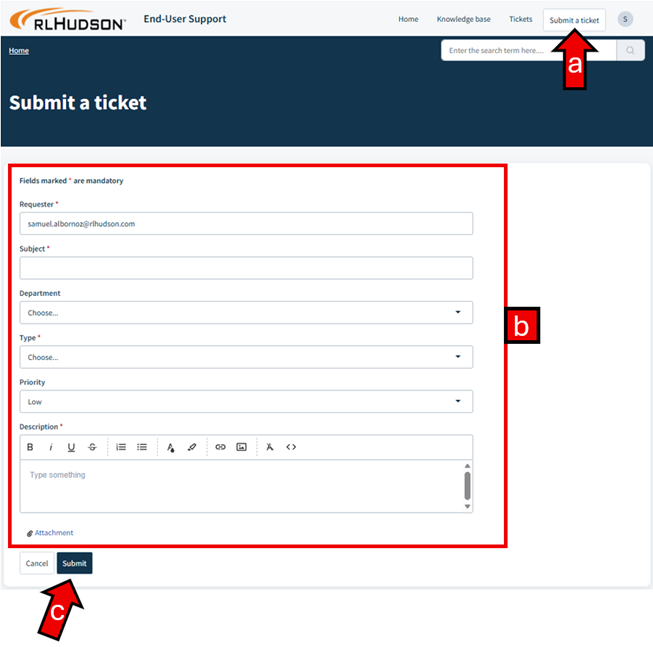
To submit a ticket 

  1. Click the Submit a ticket button on the top right side
  2. Fill out the form
  3. Click Submit to send your ticket in


The image displays a user interface for submitting a support ticket, with fields for requester information, subject, priority, description, and an attachment option.

AI-generated content may be incorrect.


Was this article helpful?

That’s Great!

Thank you for your feedback

Sorry! We couldn't be helpful

Thank you for your feedback

Let us know how can we improve this article!

Select at least one of the reasons
CAPTCHA verification is required.

Feedback sent

We appreciate your effort and will try to fix the article