Example: “My Teams is not current. It is showing old messages from 2023.”
If Teams is showing old messages or is not updating, follow the steps below.
- Sign out of Teams.
- In Teams, go to the upper-right corner of the window.
- Click your profile picture or initials.
- Select Sign out.
- Fully close Teams.
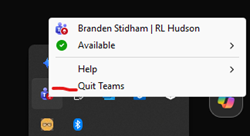
- Go to the system tray near the clock in the bottom-right corner of your screen.
- If needed, click the up arrow to show hidden icons.
- Right-click the Teams icon.
- Select Quit.
3. Reopen Teams and sign back in.
If your Teams messages still do not update, send an email to helpdesk@rlhudson.com for assistance.
Was this article helpful?
That’s Great!
Thank you for your feedback
Sorry! We couldn't be helpful
Thank you for your feedback
Feedback sent
We appreciate your effort and will try to fix the article