How to Add Email to your Android
Unlock your phone
1. Download the Outlook App
- Open the Play Store app (look for a colorful triangle icon on your home screen).
- Tap the search bar at the top, type "Outlook", and hit search.
- Find Microsoft Outlook and tap the Install button.
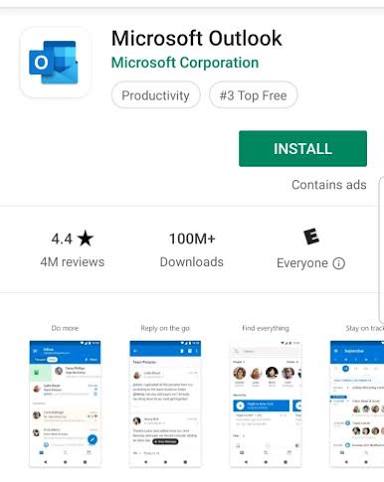
- Once downloaded, tap Open
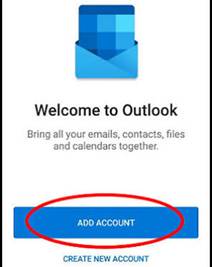
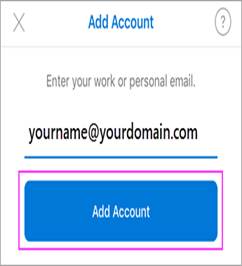
2. Enter Your Email
- Type in your full Office 365 email address and tap Continue.
3. Handle the Authenticator App Notification
- The Outlook app will now display a 2-digit number on your screen. Memorize or write down this number.
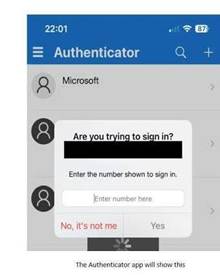
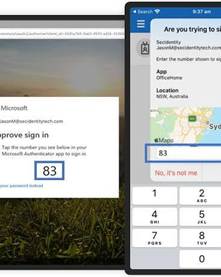
- Exit Outlook (do not close it completely) and open your Microsoft Authenticator app.
- A prompt will pop up inside the Authenticator app. Type the 2-digit number into the box and tap Approve. (image 2)
- Note: You may need to scan your fingerprint or enter your phone's PIN code to finalize the approval
4. Finish Up
- Go back to the Outlook app.
- The screen will ask if you want to add another account. Tap Skip or Maybe Later.
- Your inbox and calendar will now open and begin downloading your messages
Here is a youtube link on how to this as well. If you have trouble feel free to email
Was this article helpful?
That’s Great!
Thank you for your feedback
Sorry! We couldn't be helpful
Thank you for your feedback
Feedback sent
We appreciate your effort and will try to fix the article