Set Up Microsoft 365 Mail on an iPhone
Use these steps to add your Microsoft 365 email account to the built-in Mail app on your iPhone.
Before you begin: Make sure you know your full email address and password.
On your iPhone home screen, open Settings. 
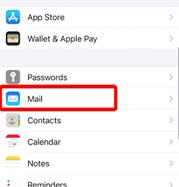
- Scroll down and tap Mail.
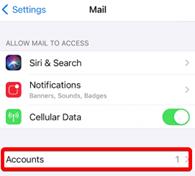
- Tap Accounts.
- Tap Add Account.
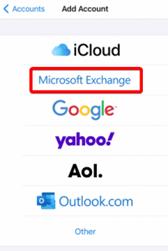
- Select Microsoft Exchange.
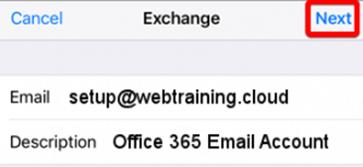
- Enter your email address and a short description, such as Work Email.
- Tap Next.
- When prompted, tap Sign In.
- Enter your password and complete any verification steps.
- Review the permissions request, then tap Accept.
- Choose what you want to sync, such as Mail, Contacts, Calendars, and Reminders.
- Tap Save.
If you have trouble after this please email helpdek@rlhudson.com
Advanced Settings if needed
Username: | yourname@rlhudson.com (ex: branden.stidham@rlhudson.com) |
Password: | Same one used to log into your PC |
Incoming Server: | outlook.office365.com
|
Outgoing Server: | smtp.office365.com
|
IMAP, POP3, and SMTP require authentication. | |
Was this article helpful?
That’s Great!
Thank you for your feedback
Sorry! We couldn't be helpful
Thank you for your feedback
Feedback sent
We appreciate your effort and will try to fix the article