Classic Outlook
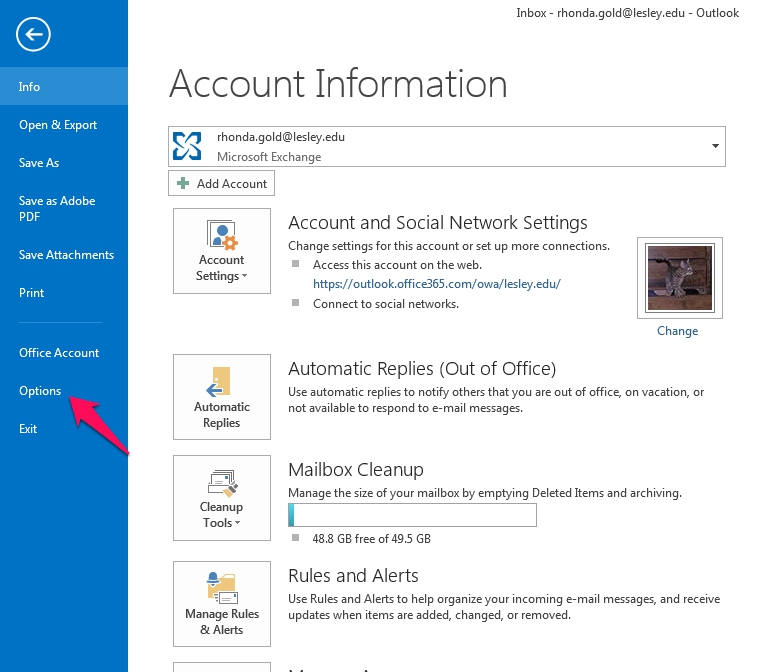
New Outlook
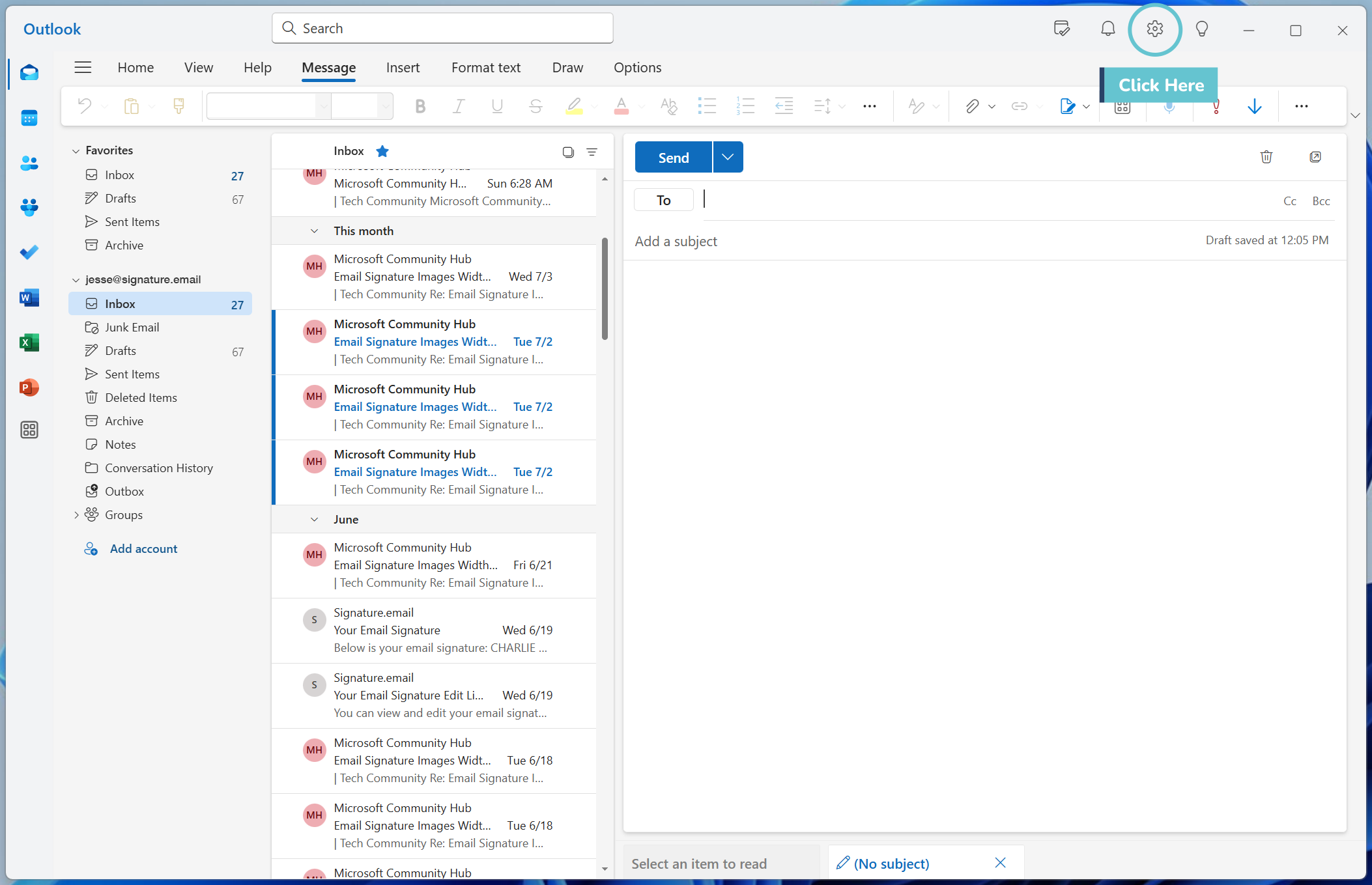
Step 2.
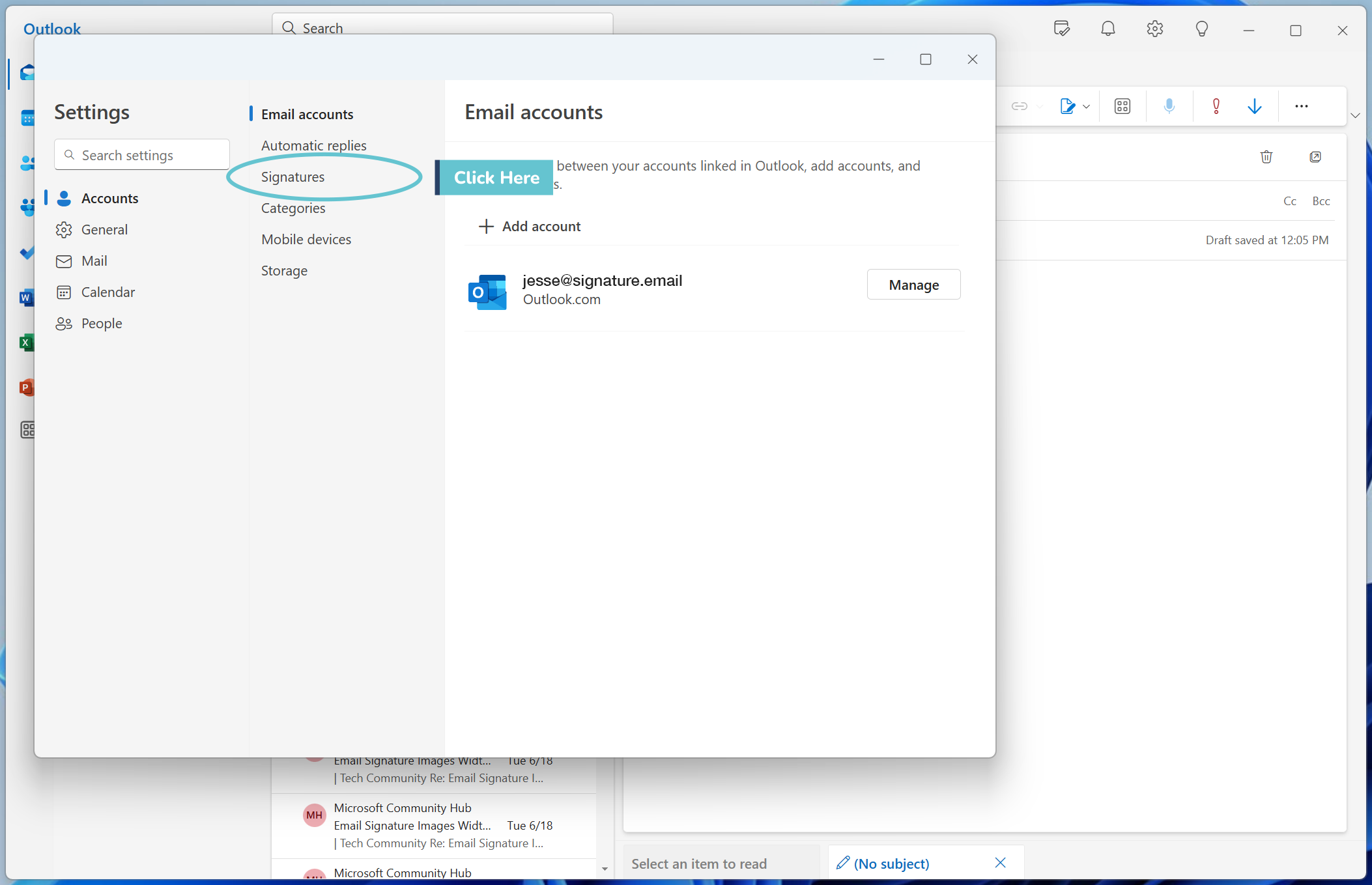
In the left hand menu, click the Signatures option in the sub-menu under Accounts
Classic Outlook
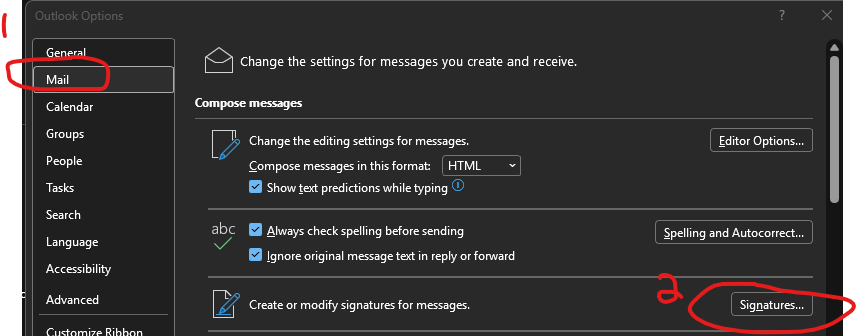 Step 3
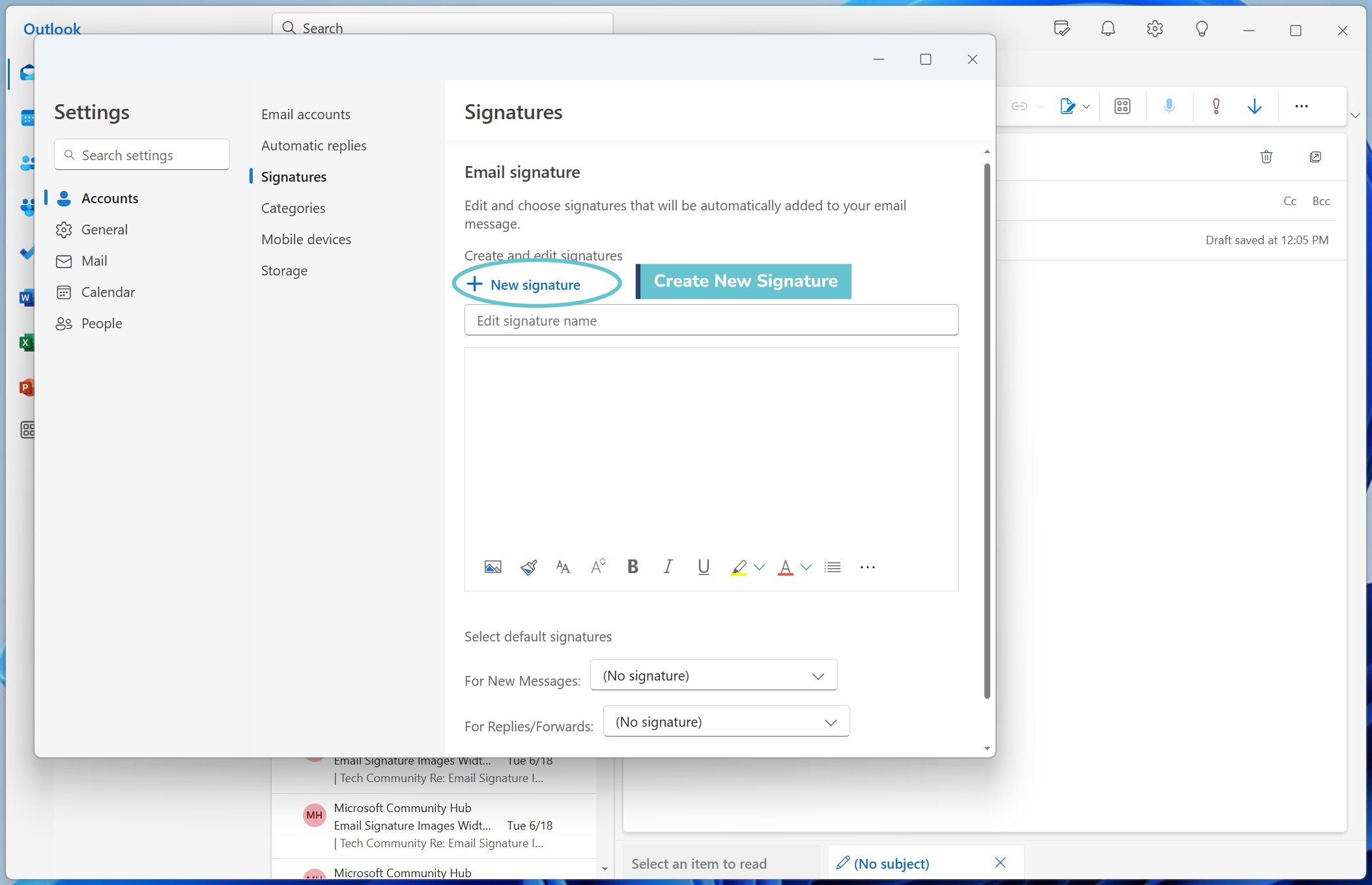
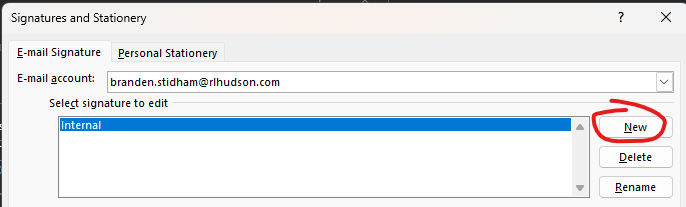
Click New Signature to start then name the signature
Classic
Step 4
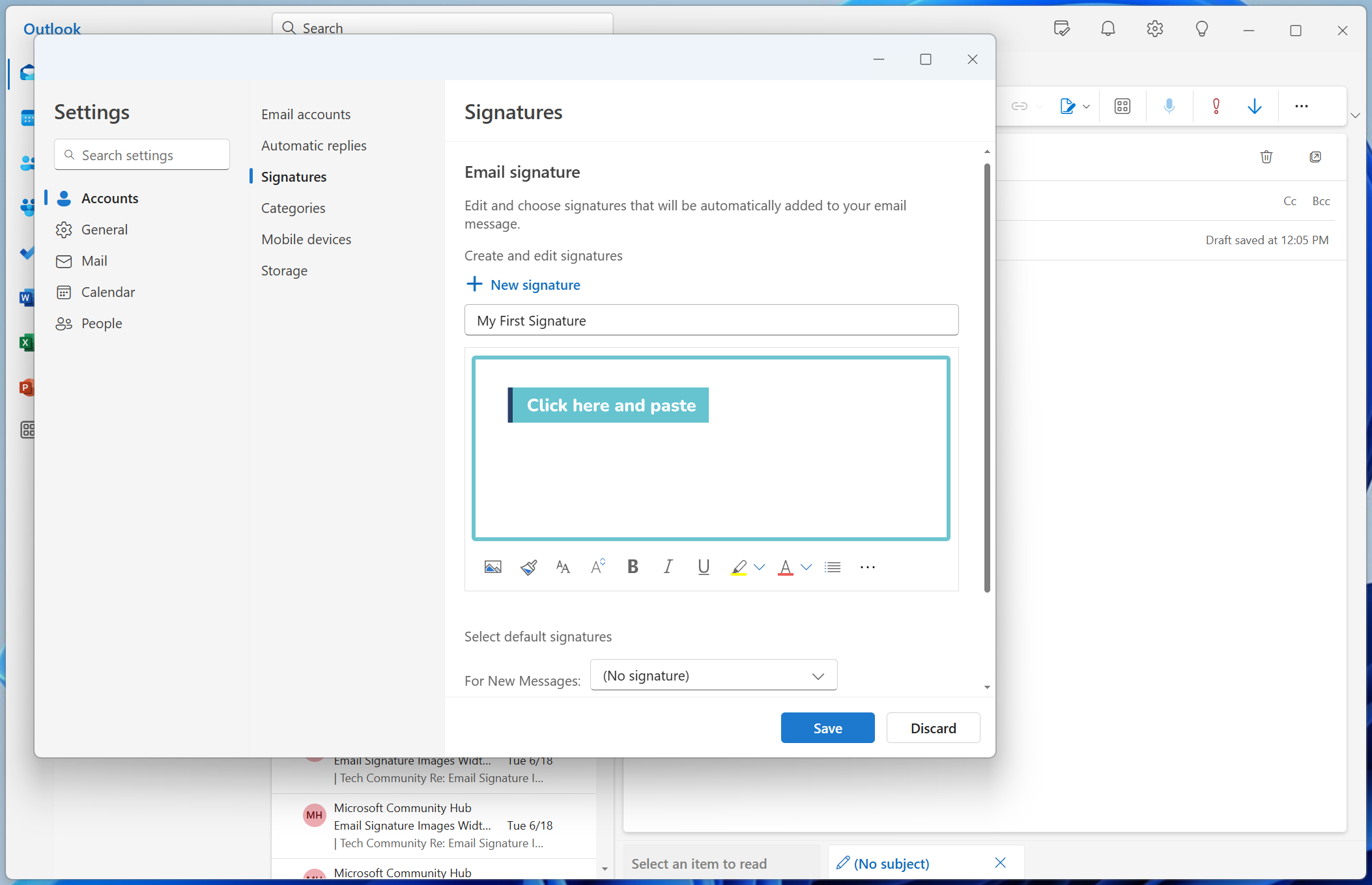
In the signature editor box click in it and Paste your signature On Windows you can press Ctrl + V. You can also often right click and find the Paste option in the menu.
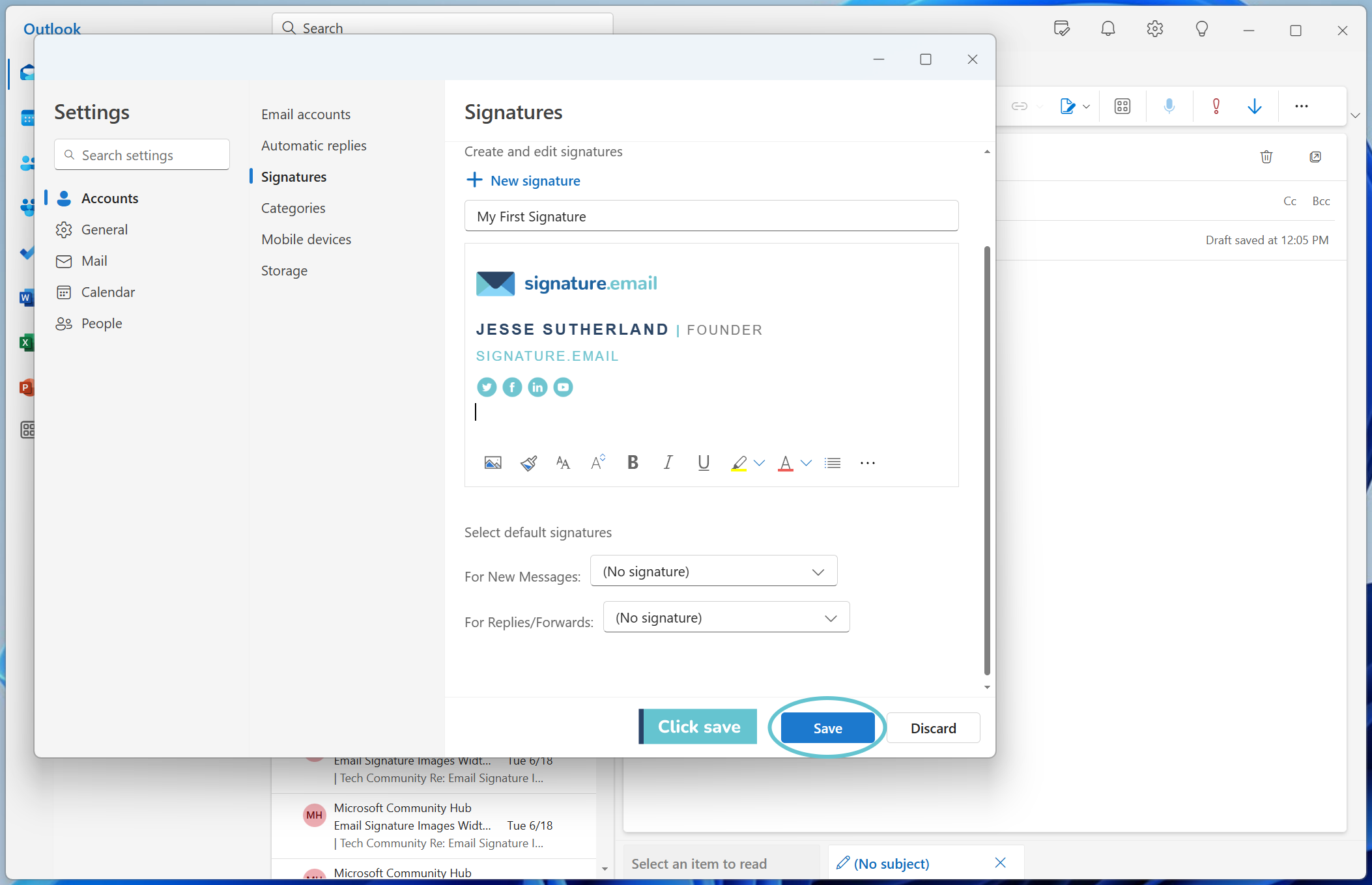
Then save your signature by clicking the save button.
Classic
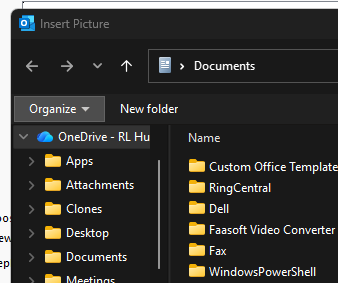
Click the picture icon to add in the image of the logo

It will be located wherever you saved the image you captured.
If you didn't take a snip or Snag it of the logo it is located o
n the sharefile under IT called RLH Signature below and you can save it to your desktop.
The logo is attached as well so you can use snip it/snag it and save it to your desktop


Was this article helpful?
That’s Great!
Thank you for your feedback
Sorry! We couldn't be helpful
Thank you for your feedback
Feedback sent
We appreciate your effort and will try to fix the article