You will need your computer, your RL Hudson login credentials, your smartphone with Duo Mobile installed and activated, and an internet connection.
Step 1: Open GlobalProtect VPN on Your Computer, bottom right corner by your clock.
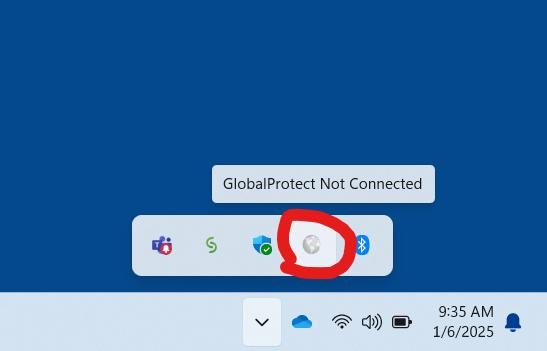
Look at the bottom-right corner of your Windows desktop, near the clock.
Click the up arrow (^) to display hidden icons.
Find the GlobalProtect icon, which looks like a globe.
Click the globe icon to open the GlobalProtect connection window.
If you do not see the icon, click the Windows Start button, type
GlobalProtect, and select the application.
Step 2: Connect to the VPN
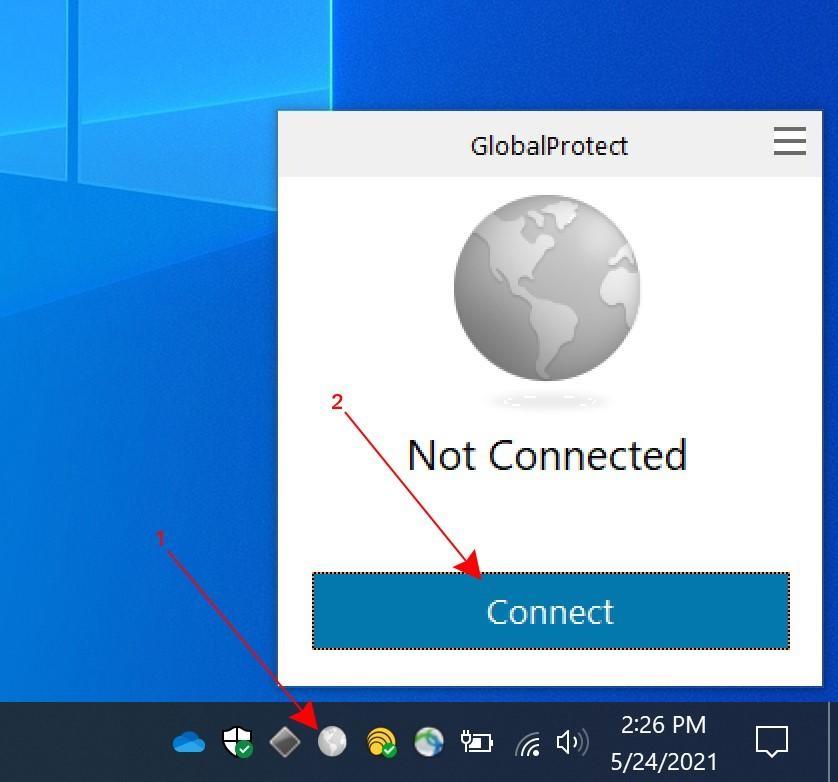
When GlobalProtect opens, check the connection status.
If it says Disconnected, click Connect.
If you are asked for a portal address,enter vpn.rlhudson.com contact IT for the correct RL Hudson VPN portal address.
A login window may appear asking for your username and password.
Enter your RL Hudson credentials and select Sign In or Connect.
Depending on your configuration, GlobalProtect may open a Microsoft sign-in window instead of displaying username and password fields directly.
Step 3: Approve the Login Using Duo Mobile
After entering your credentials, keep GlobalProtect open on your computer.
Pick up your smartphone.
You should receive a notification from Duo Mobile asking you to verify your login.
Tap the notification to open Duo Mobile.
Review the authentication request and verify that it matches the login you just started.
If Duo asks you to enter a verification code, enter the code shown on your computer into Duo Mobile.
If Duo displays an Approve button, tap Approve.
Complete any additional verification requested by your phone, such as Face ID, fingerprint, or phone PIN.
Troubleshooting Common Issues
Problem | What to do |
|---|---|
Cannot find GlobalProtect | Search for GlobalProtect using the Windows Start menu. If missing, contact IT. |
No Duo notification received | Unlock your phone, open Duo Mobile manually, and check for a pending request. |
Duo request expired | Return to GlobalProtect and initiate a new connection. |
Incorrect username or password | Reenter your RL Hudson credentials carefully. |
Duo authentication succeeded but VPN does not connect | Check your internet connection and retry. Contact IT if the problem continues. |
Phone was replaced or Duo is not activated | Contact IT to have Duo Mobile enrollment restored. |
GlobalProtect says Connected but internal resources are unavailable | Contact IT for additional troubleshooting. |
Reminder: Your phone must have internet access through Wi-Fi or cellular data to receive Duo Push notifications. The Duo authentication screen may vary depending on how the VPN is configured.
Was this article helpful?
That’s Great!
Thank you for your feedback
Sorry! We couldn't be helpful
Thank you for your feedback
Feedback sent
We appreciate your effort and will try to fix the article