Step 1: Find the Wi-Fi Symbol
The Wi-Fi symbol looks like curved lines over a dot.
- Look in the bottom-right corner of your screen.
- If you see this type of symbol, ? you are connected to Wi-Fi.
- If you see a globe ?, X, or warning sign, there may be a connection problem
Step 2: Make Sure Airplane Mode Is Off
- Look for an airplane icon.
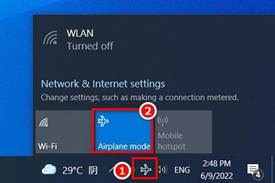
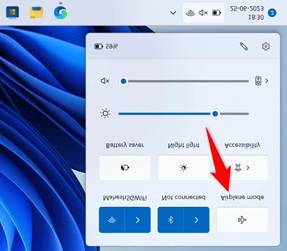
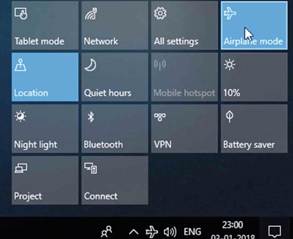
- If it is turned on, click it to turn it off. Turned on looks like the above image
- If there is no Airplane then proceed to step 3
Step 2B Check Wi-Fi Networks
- Click the network icon near the clock.

- A list of Wi-Fi networks should appear.
-
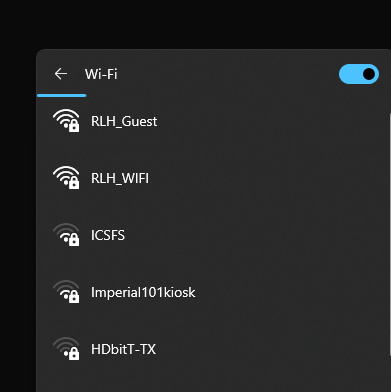
- If your Wi-Fi name says Connected, you are connected.
- If it says Available or Secured, click it and choose Connect.
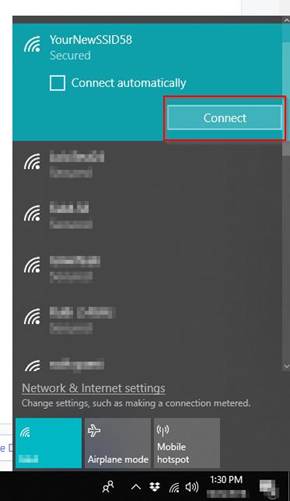
- If no Wi-Fi networks appear, Wi-Fi may be turned off.
ONLY IF YOU ARE AT HOME THIS STEP IS FOR YOU
Step 3: Check the Wi-Fi Box (Router)
The Wi-Fi box is usually a small device with blinking lights.
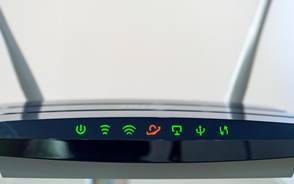
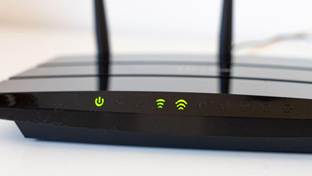
- Find the Wi-Fi box.
- Make sure the power light is on.
- Look for a light labeled Internet, WAN, or a globe symbol.
- If that light is red or off, CALL or your internet provider.
Step 4: Test a Website
Try opening:
- YouTube
- Bing
- Or a sight that is not in you favorites bar in Chrome or Edge
If none of them open:
- Continue to Step 5.
Step 5: Turn Wi-Fi Off and Back On
- Click the Wi-Fi symbol. (refer to the step 2 image. The arched lines with the dot)
- Turn Wi-Fi off. Click the wifi symbol
- Wait 10 seconds.
- Turn Wi-Fi back on. Click the wifi symbol again
- Connect to your Wi-Fi name again.
Step 6: Restart the Computer
- Save your work.
- Click Start.
- Click Power.
- Click Restart.
Step 7: Check Another Device
Try your phone on the same Wi-Fi.
- Phone works: The problem is probably with the computer.
- Phone does not work: The problem is probably with the Wi-Fi or internet service.
If none of these steps work please have someone email helpdesk@rlhudson.com
Please give IT these details.
- "I see a globe icon."
- "I see a red X."
- "I don't see any Wi-Fi networks."
- "My Wi-Fi network is listed but says Not Connected."
- "The network cable is unplugged."
Was this article helpful?
That’s Great!
Thank you for your feedback
Sorry! We couldn't be helpful
Thank you for your feedback
Feedback sent
We appreciate your effort and will try to fix the article