If you are trying to print a label and it is only coming out halfway or not at all refer to this article Label Printer Calibration Steps
If you have signed into this PC for the first time and the label isnt printing and you are in the Assembly or Manufacturing department proceed to the steps below.
- Press Windows key
 + I to open Settings (or right-click Start → Settings)
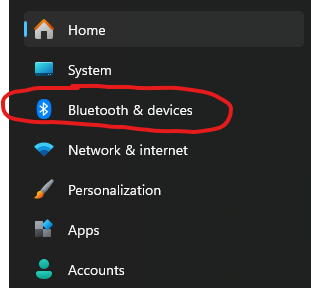
 - Click Bluetooth & devices in the left sidebar
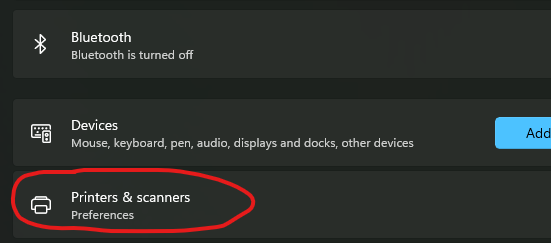
- Click Printers & scanners
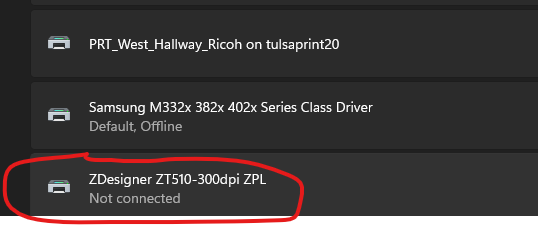
- Click on your Zebra printer (GK420T/GK240 or other type ) from the list to expand its device page
- Click Printer Preferences
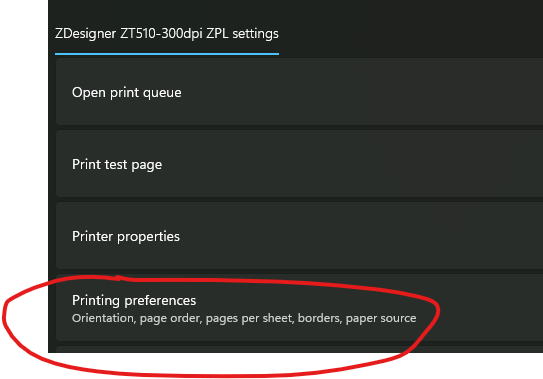
- This opens the Printing Preferences window with tabs like Options, Stock, or Layout — set your label size, orientation, and darkness here
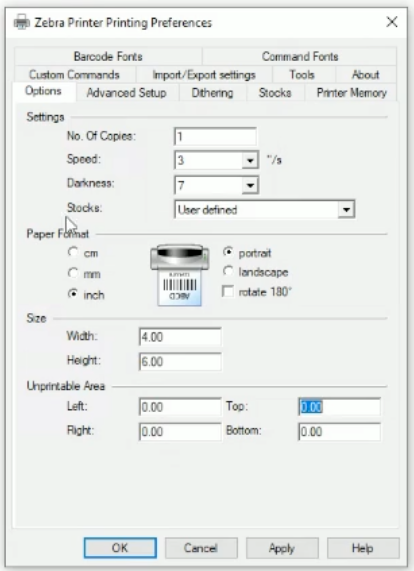
- Change the following fields to match these settings
- Paper Format = Landscape and rotate 180
- Size Width = 4 Height = 6
You will then need to go to Advanced Setup
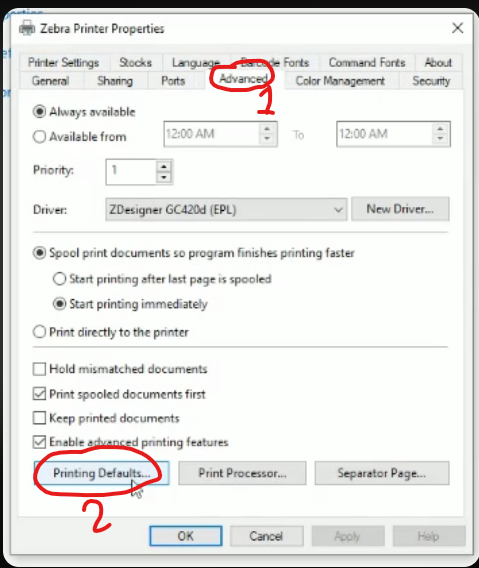 and set the Printing Defaults to match.
The exception is for the printing type and that needs to be thermal direct.
If you run into issues or get prompted for credentials when making these changes please email helpdesk@rlhudson.com
Was this article helpful?
That’s Great!
Thank you for your feedback
Sorry! We couldn't be helpful
Thank you for your feedback
Feedback sent
We appreciate your effort and will try to fix the article